
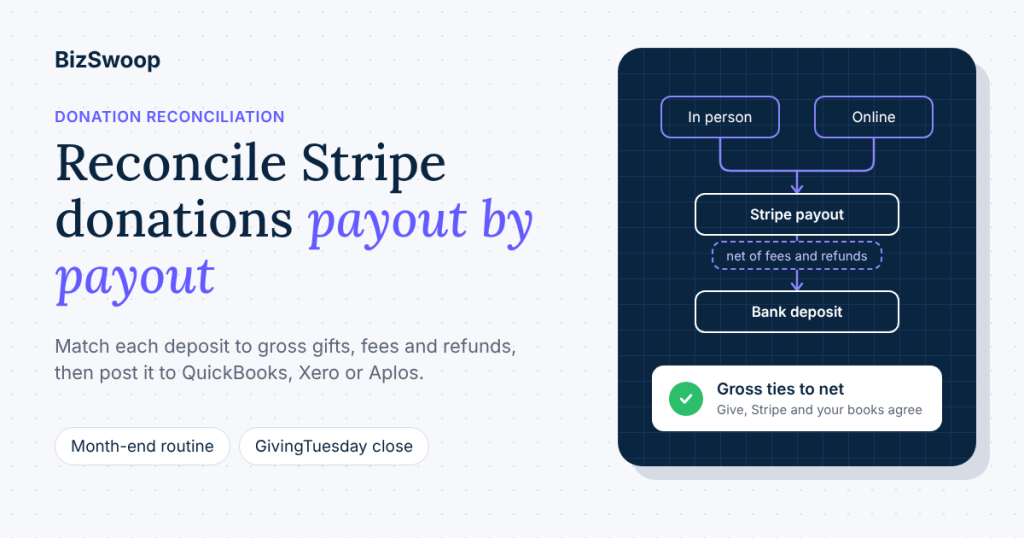
To reconcile GiveWP donations with Stripe payouts, reconcile by payout, not by day. Each Stripe deposit is a batch of gifts minus fees and refunds, so you match every payout to the gross donations, fees and adjustments inside it using Stripe’s payout reconciliation report, check the gift total against Give’s donation export, and post gross revenue, fees and the net deposit separately in your books. That’s the whole method for anyone who needs to reconcile Stripe donations; the rest of this guide shows how to run it every month.
Reconciliation is where online and in-person giving most often drift apart. The website gift and the gala gift arrive through different gateways, settle on different days, and carry slightly different fees, yet your finance team needs one clean number for the board and one clean audit trail for the auditor. This guide is for finance leads, bookkeepers and operations directors at organizations that run Give (formerly GiveWP) with Stripe, and it covers in-person gifts taken with Tap To Donate for Give by Jovvie alongside online gifts. It explains why deposits never match the Give total, where each record lives, a month-end process you can hand to a bookkeeper, how to post payouts in QuickBooks, Xero or Aplos, how to handle refunds, disputes and restricted gifts, and how to close the books quickly after GivingTuesday on Tuesday, December 1, 2026.
BizSwoop has been in business since 2016 and a Stripe Partner since 2020. We build Jovvie, so where a detail depends on your own Stripe setup, we say so rather than guess.
Key Takeaways
- Reconcile by payout, not by day. A Stripe payout bundles gifts from one or more days, net of fees and refunds, so match each bank deposit to the transactions Stripe lists inside it.
- Give is your gross revenue ledger. Give’s donation export lists every gift, online and in person, with donor, form, gateway and status; Stripe is the bridge to the bank.
- Book gross, fees and net separately. Record donation revenue at the gross amount, Stripe processing and platform fees as an expense, and the bank deposit as the net.
- In-person gifts have their own gateway line. Gifts taken with Jovvie run through the Jovvie Payments gateway in Give, so you can total in-person and online gifts separately in the same export.
- Refunds start in Stripe, then get recorded in Give. Refunds for in-person donations are issued from the Stripe dashboard, not inside Give, so update the Give record and keep a short refund log.
- Close GivingTuesday by payout. Pull the payouts that settle the campaign’s gifts, tie them to the campaign total in Give, and post them before year-end gifts start to pile up.
How do you reconcile GiveWP donations with Stripe payouts?
You reconcile GiveWP donations with Stripe payouts by taking each payout that reached your bank, listing the charges, refunds and fees Stripe says it contains, and confirming that the charges match donations recorded in Give for the same donors and amounts. Stripe’s payout reconciliation report does the batching for you: it “helps you match the payouts you receive in your bank account with the batches of payments and other transactions that they relate to.”
The process has three layers, and each answers a different question:
- Bank to Stripe: does this deposit equal a Stripe payout? (It should, to the cent.)
- Stripe to Give: do the charges in that payout match donations in Give? (Gross amounts, donor emails and dates line up.)
- Give to your books: is the revenue posted to the right accounts, funds and campaigns, with fees as an expense?
Work in that order every time. If layer 1 doesn’t tie, nothing below it will.
A note on setup: the payout reconciliation report is available when your Stripe account uses automatic payouts. If you trigger payouts manually, Stripe points you to the Balance report instead, and you reconcile your Stripe balance like a bank account. Most nonprofits leave automatic payouts on, and it makes this process much simpler.
Why doesn’t your Stripe deposit match your Give total?
Your Stripe deposit doesn’t match your Give total because Give records each gift at its gross amount on the day it was made, while Stripe pays out net amounts on its own schedule. Five things create the gap:
- Fees come out first. Stripe deducts processing fees before paying you, so a $100 online gift on Stripe’s standard U.S. pricing (2.9% + 30¢) arrives as $96.80 (Stripe pricing).
- Timing differs. Funds become available after a settlement delay, and daily automatic payouts send funds from transactions captured a few business days earlier. In the U.S. the standard settlement timing is two business days (Stripe payouts). A gift made Friday evening can land in a deposit days later, often bundled with gifts from other days.
- Refunds and disputes net against new gifts. A refund issued this week reduces this week’s payout, even if the original gift was last month.
- Channels carry different fees. In-person card gifts on Stripe’s U.S. pricing are 2.7% + 5¢ per transaction, and Tap to Pay adds a per-authorization fee, while online card gifts are 2.9% + 30¢. A payout with a mix of both won’t divide neatly by any single rate.
- Non-Stripe gifts never appear. Cash and checks recorded in Give’s Offline Donations gateway are in your Give total but will never be in a Stripe payout (Give: offline donations).
None of this is an error. It’s why the rule is to reconcile by payout: the payout is the unit Stripe and your bank agree on.
Where does each piece of a donation live: Give, Stripe or your books?
Each donation creates records in three places, and each system is the source of truth for different fields. Knowing which system owns which field stops arguments at month-end.
| Field | Give (formerly GiveWP) | Stripe | Accounting system |
|---|---|---|---|
| Donor name, email, address | Source of truth (donor record) | Copy on the charge, if collected | Usually summarized, not per donor |
| Gross gift amount | Source of truth | Charge amount | Posted as contribution revenue |
| Campaign, form, designation | Source of truth | Not standard | Class, fund or tracking category |
| Payment gateway (online vs in person) | Gateway field on each donation | Payment method type (card present vs online card) | Optional sub-account or class |
| Processing fees | Only if a fee add-on records them | Source of truth (fee per transaction) | Posted as fee expense |
| Payout and deposit date | Not tracked | Source of truth (payout ID, arrival date) | Bank deposit |
| Refund or dispute | Status field (update manually for Jovvie gifts) | Source of truth for the money movement | Contra-revenue or expense entry |
| Receipt and tax acknowledgment | Source of truth (Give emails and annual receipts) | Not used | Not used |
Two practical consequences follow. First, revenue reporting by campaign, fund or donor comes from Give, not Stripe. Second, anything about money movement (fees, timing, refunds, disputes) comes from Stripe, not Give. Your accounting system sits on top of both.
For in-person gifts, Jovvie keeps this simple: in-person and online donations appear together in Give and in your Stripe dashboard, with donor records intact (WordPress.org listing). Gifts settle directly into your organization’s own Stripe account; Jovvie never holds the funds.
How do in-person and online gifts flow from donor to bank?
An online gift and an in-person gift follow the same four steps, from Give record to Stripe charge to Stripe payout to bank deposit. The difference is the gateway: online gifts run through Give’s Stripe gateway, and in-person gifts run through the Jovvie Payments gateway, which uses Stripe Terminal readers or Tap to Pay on a phone.
- Give record. The donor completes a Give form, on your website or on a volunteer’s phone or reader at an event. Give creates the donation with the donor, amount, form, campaign and gateway.
- Stripe charge. Stripe authorizes and captures the payment in your Stripe account. Online and card-present charges appear in the same Stripe dashboard.
- Stripe payout. After the settlement delay, Stripe groups available funds into a payout, net of fees, refunds and disputes.
- Bank deposit. The payout arrives in your bank account and appears in your bank feed.
If Give’s online Stripe gateway and Jovvie are both connected to the same Stripe account, online and in-person gifts share one Stripe balance and settle in the same payouts. If your organization connected a different Stripe account to each, you’ll have two payout streams to reconcile; the method is the same, just run twice. Check this once in Give › Settings › Payment Gateways and in your Stripe dashboard, and write it down in your reconciliation notes.
What’s the month-end reconciliation process, step by step?
The month-end process is seven steps: export, pull payouts, tie deposits, match charges, post entries, handle exceptions and lock the period. Hand this list to whoever closes the month.
- Export the month’s donations from Give. Use Give’s donation export for the month, with all statuses and gateways, and keep the gateway, status, form and campaign columns (Give: export donations). This is your gross revenue list.
- Download the payout reconciliation report from Stripe. Choose a date range covering every payout whose estimated arrival date falls in the month, then download the Itemized CSV. Stripe groups payouts by estimated arrival date, not the date your bank posts them, so widen the range by a few days if needed (Stripe payout reconciliation).
- Tie each bank deposit to a Stripe payout. Every Stripe deposit in your bank feed should equal one payout’s net amount. Mark each as matched.
- Match the charges to Give donations. For each payout, compare the charge rows to Give donations using gross amount, donor email and date. Sort both files by amount and email; most rows match in minutes. Flag anything left over.
- Post the payout entry in your accounting system. Record contribution revenue at gross, fees as an expense and the net deposit to the bank (see the journal entry below), split by fund or campaign using Give’s export.
- Handle exceptions. Refunds, disputes, gifts outside Stripe (cash, checks) and any gift in Give with no Stripe charge (a test gift that wasn’t cleared, for example) each get a short note and, if needed, a correcting entry.
- Report the ending Stripe balance and lock the period. The report’s ending balance section shows funds received but not yet paid out at month-end. Record it as a receivable or a Stripe clearing balance so your revenue is complete, then close the month.
A tip for step 4: Stripe’s itemized report can include customer email and, for CSV exports, metadata columns. Check which description and metadata your online and in-person charges actually carry by opening one of each in your Stripe dashboard. If they include an identifier from Give, add that column to the export; if not, amount, email and timestamp are enough for most organizations.
How do you record Stripe fees and the in-person platform fee?
Record donation revenue at the gross amount and every fee as an expense, rather than booking the net deposit as revenue. That keeps your contribution revenue equal to what donors gave, which is what your receipts, your Form 990 and your auditor expect. Our guide to nonprofit payment processing fees explains each fee layer.
For a gift taken in person with Jovvie, there are up to three layers to account for:
| Layer | What it is | Where you see it | How to book it |
|---|---|---|---|
| Stripe processing fee | Stripe’s card-present rate (2.7% + 5¢ on U.S. standard pricing; Tap to Pay adds a per-authorization fee) | Fee column on each Stripe transaction | Payment processing expense |
| Jovvie platform fee | 0.5% to 2% on in-person donations only, depending on donation volume | Check how it appears for your account (see below) | Payment processing or software expense |
| Donor-covered fees (optional) | An amount the donor chooses to add with Give’s Fee Recovery add-on | Included in the gross gift in Give and Stripe | Contribution revenue (part of the gift) |
The official Jovvie fee wording, from the WordPress.org listing: free plugin, free Jovvie account, no monthly fees or contracts; a platform fee on in-person donations only, 0.5% to 2% depending on your donation volume, in addition to Stripe’s processing rate. Online Give donations are unaffected.
Before your first close, open one in-person charge in your Stripe dashboard and look at its fee breakdown, so you know whether the platform fee appears on the Stripe transaction or separately. A Jovvie advisor can confirm it for your account. Either way, the treatment is the same: book it as an expense, and code it consistently so you can see what in-person giving costs.
Donor-covered fees work with Jovvie when your organization uses Give’s Fee Recovery add-on (Pro and Elite plans). The extra amount the donor adds is part of the gift; it shows in Give and in the gross Stripe charge, so it needs no special entry beyond recording the gross.
What does a GivingTuesday reconciliation look like, line by line?
Here is a worked example: 10 online gifts and 15 in-person gifts on GivingTuesday settle in two Stripe payouts, and each payout gets one journal entry. The numbers use Stripe’s standard U.S. rates for domestic cards; your rates, timing and fee display may differ.
Assumptions:
- Online: 10 gifts of $100 through Give’s Stripe gateway (fee $3.20 each).
- In person: 15 gifts of $50 through Jovvie on card readers (Stripe fee $1.40 each): 6 at an afternoon pop-up and 9 at the evening event.
- Payouts: the online gifts and the afternoon in-person gifts settle in one payout; the evening gifts, captured later, settle in the next day’s payout.
| Payout 1 | Payout 2 | Total | |
|---|---|---|---|
| Online gifts (gross) | $1,000.00 | — | $1,000.00 |
| In-person gifts (gross) | $300.00 | $450.00 | $750.00 |
| Gross donations | $1,300.00 | $450.00 | $1,750.00 |
| Stripe fees, online (10 × $3.20) | −$32.00 | — | −$32.00 |
| Stripe fees, in person (15 × $1.40) | −$8.40 | −$12.60 | −$21.00 |
| Net payout (Stripe processing only) | $1,259.60 | $437.40 | $1,697.00 |
The Jovvie platform fee on the $750 of in-person gifts is 0.5% to 2% depending on volume, or $3.75 to $15.00 in this example. If it appears on the Stripe transactions for your account, it also reduces the net payout; if it’s billed separately, it’s a separate expense entry. Either way, it doesn’t change gross revenue.
The journal entry for Payout 1, with a Stripe clearing account:
| Account | Debit | Credit |
|---|---|---|
| Bank (operating account) | $1,259.60 | |
| Payment processing fees (expense) | $40.40 | |
| Contribution revenue: GivingTuesday (online $1,000, in person $300) | $1,300.00 |
Payout 2 follows the same pattern: debit bank $437.40, debit fees $12.60, credit contribution revenue $450.00. Give’s export confirms the campaign total of $1,750.00, split by gateway, and the two payouts tie to the bank to the cent. Notice why the day-based approach fails: on December 1, Give shows $1,750 raised, and no single deposit shows that number.
Closing out GivingTuesday this year? A Jovvie advisor can walk your finance team through how online and in-person gifts settle in Stripe, how fees appear for your account, and how to tie payouts to Give before December 1.
How do refunds, disputes and donor-covered fees affect reconciliation?
Refunds and disputes reduce the payout they fall into, not the payout of the original gift, so book them in the period they happen and link them to the original donation in a note. Donor-covered fees, by contrast, are part of the gross gift and need no adjustment.
- Refunds of in-person gifts. Issue the refund in your Stripe dashboard; refunds for in-person donations can’t be processed from inside Give (WordPress.org listing). Then open the donation in Give, and if its status doesn’t read Refunded, update it in Donation Details and add a note. Our guide to recording in-person donations in GiveWP covers the steps, and the Stripe Terminal refund workflow explains the Stripe side.
- Refunds of online gifts. Follow your normal Give Stripe gateway process. Either way, the refund appears in the payout reconciliation report under the refund category.
- Processing fees on refunds. Check Stripe’s current pricing for whether processing fees are returned on refunds for your account; record whatever the report shows rather than assuming.
- Disputes (chargebacks). A dispute withdraws the gift amount plus Stripe’s dispute fee ($15 on U.S. standard pricing) from your balance. Record the withdrawal against revenue or a receivable, record the fee as an expense, and reverse it if you win. Card-present gifts are disputed far less often than online gifts, but it does happen.
- Donor-covered fees. Gifts that include Fee Recovery show the larger gross amount in Give and in Stripe. Book the gross as contribution revenue; the fee expense is booked as usual.
- Test donations. Jovvie’s Test Mode doesn’t move real money, and test gifts can be cleared from Give afterwards. Clear them before you export, or filter them out.
Keep a one-page refund and dispute log with date, donor, original donation ID, amount, reason and who approved it. Auditors ask for it, and it makes step 6 of the month-end close a five-minute job.
QuickBooks, Xero or Aplos: how do you post donation payouts?
All three post donation payouts the same way: record each Stripe payout as one deposit with gross revenue, a fee line and the net to the bank, split by fund or campaign from Give’s export. What differs is how each tool tracks funds and how much is automated.
| QuickBooks Online | Xero | Aplos | |
|---|---|---|---|
| How payouts arrive | Bank feed shows the net Stripe deposit | Bank feed shows the net Stripe deposit | Bank feed or import shows the net deposit |
| Recording gross vs fees | Add the deposit with a gross revenue line and a negative fee line, or use a Stripe clearing account | Split the bank transaction into gross revenue and a fee line, or use a clearing account | Split the deposit into revenue and fee lines by fund |
| Tracking restricted funds | Classes or locations (plan-dependent), or separate income accounts | Tracking categories | Built-in fund accounting |
| Donor-level detail | Usually kept in Give, summarized in QuickBooks | Usually kept in Give, summarized in Xero | Can hold contributions by donor, but Give stays the source for receipts |
| Best for | Organizations already on QuickBooks with a bookkeeper | Organizations already on Xero, often outside the U.S. | Organizations that want nonprofit fund accounting out of the box |
On “GiveWP QuickBooks”: you don’t need a direct Give-to-QuickBooks connector to reconcile well. One entry per payout, built from Stripe’s report and Give’s export, is accurate and auditable, and it keeps donor-level data where it belongs, in Give. If you run high volume, a third-party Stripe-to-accounting sync tool can automate the payout entries; you’ll still tie the totals to Give each month.
A clearing account is the most robust approach in any of the three. Post the gross gifts and fees into a “Stripe clearing” account as they’re matched, and post each payout from clearing to the bank. The clearing balance at month-end should equal Stripe’s ending balance, which gives you a built-in check.
How do you handle restricted and designated gifts?
You handle restricted and designated gifts by letting Give capture the designation on the gift and carrying it into your books as a fund, class or tracking category when you post each payout. Stripe doesn’t know which fund a gift belongs to, so the designation has to come from Give.
- Capture the designation in Give. Use separate Give forms or campaigns for restricted purposes, or Give’s Funds & Designations add-on (a paid Give add-on) to let donors choose a fund on one form. In-person gifts through Jovvie use the same Give forms, so the designation travels with the gift.
- Split the payout by fund. When you post a payout, split the gross revenue line by fund using Give’s export for the gifts inside it. Fees can be allocated pro rata or charged to operations, per your policy.
- Match restriction to release. Track temporarily restricted gifts until the purpose is met, as you would for any restricted contribution.
- Watch event revenue. Gala tickets, auction purchases and raffles aren’t simple contributions. If the same Stripe account handles them, code them separately (and note that quid pro quo rules may require disclosure on receipts); your accountant will advise on treatment.
If you raise money for several programs at one event, set up one form per program and hand each volunteer the right form. It’s far easier than re-coding gifts at month-end.
How do you close the books after GivingTuesday and year-end?
You close GivingTuesday and year-end by reconciling every payout that settles the campaign’s gifts, tying them to Give’s campaign total, and posting them before the next wave of giving arrives. December is busy; a short checklist keeps it under control.
- Wait for the settlement window. Gifts on Tuesday, December 1 typically settle in payouts later that week. Note the last payout that includes campaign gifts.
- Export the campaign from Give. Filter the donation export to the GivingTuesday form or campaign and the campaign dates, with gateway and status columns.
- Reconcile the campaign’s payouts. Use the month-end steps above for just those payouts, and flag any gift without a matching Stripe charge.
- Report by channel. Give’s Legacy Reports “Donation Methods” view totals gifts by gateway, which shows online versus in-person giving on the day (Give: reports). Boards and funders like this number.
- Handle year-end timing. Gifts made on December 31 belong to the donor’s tax year when they were made, even if the payout arrives in January. Book December gifts in December with a Stripe receivable or clearing balance for the unpaid portion.
- Run annual receipts from Give. In-person gifts through Jovvie appear in donor history, and in annual receipts when your organization uses Give’s Annual Receipts add-on, so donors get one statement covering both channels.
Organizations that run this close within a week of GivingTuesday go into year-end with clean books and a clear picture of which channel performed.
When does a sync tool or accountant make sense?
A sync tool makes sense when payout volume makes manual entries slow, and an accountant makes sense whenever restricted funds, event revenue or audits are involved. For most small and mid-sized nonprofits, one entry per payout is enough.
- Stay manual if you have fewer than about 20 to 30 payouts a month and a few funds. It’s an hour or two at month-end.
- Consider a sync tool if you have daily payouts all year, multiple Stripe accounts, or many funds, and your bookkeeper is retyping the same splits.
- Bring in an accountant if you have restricted grants, significant event or auction revenue, an annual audit, or you’re unsure how to treat donor-covered fees or quid pro quo gifts.
Whatever you choose, Give stays the source of truth for donors and receipts, and Stripe stays the source of truth for money movement. Our in-person fundraising payments strategy guide covers where reconciliation fits in the wider decision about payment tools.
Frequently asked questions
Why is my Stripe payout less than my donations?
Stripe deducts processing fees, refunds and disputes before paying out, and each payout can include gifts from several days. Compare each payout with the transactions Stripe lists inside it, not with a day’s donation total in Give.
How do I record Stripe payments in QuickBooks?
Record each Stripe payout as a deposit with a gross revenue line for the donations and a negative line for fees, so the deposit total equals the net amount in your bank. Many bookkeepers use a Stripe clearing account to keep gross gifts, fees and payouts separate.
Can I accept donations through Stripe?
Yes. Stripe processes card donations for nonprofits online and in person. Give’s Stripe gateway handles online gifts, and Tap To Donate for Give by Jovvie adds in-person gifts on Stripe Terminal readers or Tap to Pay, all settling into your own Stripe account.
How much does Stripe take from donations?
On Stripe’s standard U.S. pricing, 2.9% + 30¢ per online card donation and 2.7% + 5¢ per in-person card donation, with a small extra fee per Tap to Pay authorization. Eligible nonprofits can apply to Stripe for a discount. In-person gifts with Jovvie add a 0.5%–2% platform fee, by volume, on in-person donations only.
Does Stripe count as ACH?
Card donations through Stripe are card payments, not ACH. Stripe pays out your balance to your bank by bank transfer, which in the U.S. typically travels over ACH, and Stripe also offers ACH Direct Debit as a separate payment method for donors.
Where do I issue a refund for an in-person donation?
In your Stripe dashboard. Refunds for in-person donations taken with Jovvie can’t be processed from inside Give. After refunding, check the donation’s status in Give and update it if needed, with a note.
Do in-person and online donations appear in the same Give report?
Yes. In-person and online donations appear together in Give and in Stripe, with donor records intact. The gateway field tells you which channel each gift came through.
What is the best way to reconcile donations from multiple channels?
Use Give’s export as the single gross revenue list across channels, Stripe’s payout reconciliation report for card gifts, and your bank feed for cash and checks. Reconcile each source to the bank, then confirm the combined total matches Give.
How do I handle a Stripe dispute on a donation?
Respond in the Stripe dashboard with your evidence, such as the receipt and donor record from Give. In your books, record the withdrawn amount and the dispute fee when Stripe deducts them, and reverse the entry if the dispute is decided in your favor.
Talk to a Jovvie advisor about donation reconciliation
Clean reconciliation is mostly a matter of structure: one donor ledger in Give, one money trail in Stripe, and one entry per payout in your books. If your organization already raises money online with Give, Jovvie adds in-person giving to the same forms, the same donor records and the same Stripe account, with no monthly fee and a clearly stated platform fee on in-person gifts only. A Jovvie advisor can walk your finance team through how in-person gifts settle and appear in Stripe before GivingTuesday on December 1, so the close is quick.
Sources and primary documentation: Tap To Donate for Give by Jovvie on WordPress.org, Jovvie for Give, Jovvie setup documentation, How Tap to Donate Technology Works and What It Costs (Liquid Web), Give by Liquid Web, Stripe payouts, Stripe payout reconciliation report, Stripe payout reconciliation via the API, Stripe Balance report, Stripe pricing, Give: export donation history, Give: reports, Give: offline donations.
