
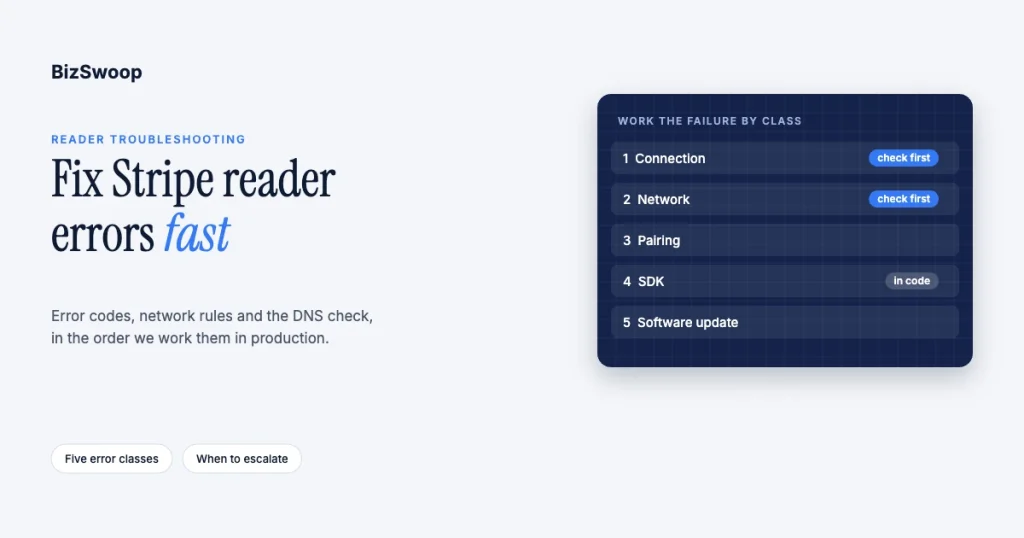
Most Stripe Terminal reader errors fall into five classes: connection, network, pairing, SDK, and software update. The fastest fix is to identify the class from the error code or symptom, apply that class’s remedy, and escalate to Stripe only after diagnostics and a second-network test fail. The most useful thing on this page is the consolidated error reference below: common codes, their plain-English cause, the fix, and whether to escalate.
We deploy and support Stripe Terminal readers across retail, field service, healthcare, and multi-location rollouts, and BizSwoop runs its own Stripe Connect platform at payments.bizswoop.app. The guidance below is what we check, in the order we check it, when a reader goes dark in production, and every claim about Stripe’s API, network requirements, or hardware cites Stripe’s documentation as re-checked in November 2026. It sits in our hardware library alongside the Stripe Terminal hardware reader guide; developers embedding readers should also read Stripe Terminal beyond POS: embedding card-present payments into SaaS.
Key Takeaways
- Classify before you fix. A reader that won’t appear is a connection or registration problem; one that drops mid-sale is usually the network; a Bluetooth reader that won’t pair is a pairing or permission problem.
- Check power, Location and network first. Most tickets clear once the reader is charged, registered to the right Stripe Location, and on the same local network as the point-of-sale device.
- Smart readers have strict network rules. Stripe requires IPv4, a private IP, password-protected WPA/WPA2/WPA3 Wi-Fi, no Wi-Fi 6 (802.11ax), and Wi-Fi or Ethernet, not both, for SDK integrations.
- DNS is the hidden culprit. With an SDK on a separate device, that device’s DNS must resolve internet hostnames to local IPs; if it doesn’t, Stripe recommends Cloudflare (1.1.1.1) or Google (8.8.8.8) DNS.
- Use the built-in diagnostics. S700, S710 and WisePOS E readers test DNS, Stripe connectivity, Wi-Fi signal, battery and hardware status on the device.
- Escalate with evidence. A hardware fault code or repeated update failure on a healthy network goes to Stripe with the serial number, error code, diagnostics and timestamps.
How do I fix common Stripe Terminal reader errors?
Work the failure by class: confirm power and registration first, then the network, then pairing, then SDK-level errors, and treat software-update failures as their own case.
A reader that won’t appear in your app is a connection or registration problem. A reader that connects but drops mid-transaction is usually a network problem. A Bluetooth reader that won’t pair is a pairing problem. An error thrown into your application code is an SDK problem. A reader stuck on an update screen or showing an install code is a software-update problem. The reference table maps codes to these classes, and the sections after it walk each class. Stripe Terminal errors surface both at the counter and in code, and the fixes differ.
What do Stripe Terminal error codes mean?
The table below consolidates the API error codes Stripe returns for server-driven integrations (Stripe error codes), common SDK error names from the iOS and Android Terminal SDKs, and the codes smart readers show on screen (smart reader connectivity error codes). “Escalate?” means open a case with Stripe support after the listed fix fails.
| Error code | Class | Plain-English cause | Fix | Escalate? |
|---|---|---|---|---|
terminal_reader_offline | Connection | Stripe can’t reach the reader | Confirm the reader is powered on and connected to the internet, then retry | Only if the reader is online but still reported offline |
terminal_reader_timeout / REQUEST_TIMED_OUT | Network | A command to the reader didn’t return in time | Check network quality and latency; retry, following Stripe’s error-handling guidance | If it persists on a healthy network |
terminal_reader_busy | Connection | The reader is processing another request | Wait for the current action to finish or cancel it; don’t send concurrent commands | Rarely |
terminal_reader_invalid_location_for_payment / _for_activation | Connection | The reader’s registered Location can’t take payments or activate it | Register the reader to a new Location | No |
terminal_reader_hardware_fault | Hardware | Stripe detected an unrecoverable hardware fault | Contact Stripe support with the reader’s serial number for a replacement | Yes |
READER_COMMUNICATION_ERROR | Pairing / SDK | The SDK lost its connection to the reader mid-operation | Reconnect (discover, then connect); for Bluetooth, forget and re-pair | If it recurs after re-pairing |
NOT_CONNECTED_TO_READER | SDK | The app tried to take a payment with no reader connected | Check connection state and connect before collecting a payment | No |
BLUETOOTH_ERROR / BLUETOOTH_CONNECT_TIMED_OUT | Pairing | Bluetooth is off, out of range, or the reader didn’t answer | Turn Bluetooth on, wake and charge the reader, move closer, re-pair | If charged, in range and permissions are correct |
LOCATION_SERVICES_DISABLED | Pairing | The OS location services needed for Bluetooth discovery are off | Turn on location services and grant the app permission | No |
STRIPE_API_CONNECTION_ERROR | Network | The device can’t reach Stripe’s API | Check the internet connection, firewall and DNS; allow Stripe’s infrastructure | If DNS and firewall are clean |
READER_SOFTWARE_UPDATE_FAILED, or on-screen AEU, F-DOWNLOAD, F-INSTALL | Software update | A reader update didn’t download or install | Keep the reader powered on a stable connection and retry; allowlist Stripe hosts; try another connection | If it fails repeatedly |
On-screen WR5 or M1-R | Network | The reader can’t reach Stripe services or the Stripe domain | Check connectivity; allowlist the host name; try a different connection | If it persists |
On-screen A1–A10, UNK | Software update | Installation or internal error on the reader | Contact Stripe support | Yes |
On-screen F-TAMPER | Hardware | The reader detected tampering | Reboot; if it persists, the device may be unrecoverable | Yes |
Use the table to identify the class, then work the matching section below.
How do I fix a Stripe Terminal reader that won’t connect?
Run this ordered procedure; it resolves most cases in a few minutes without opening code or a support ticket.
- Restart and charge the reader. A sleeping or low reader reports as offline more often than any other single cause.
- Confirm registration. Check that the reader is registered to the correct Stripe Location in the Dashboard; an unregistered reader won’t take payments however healthy the network is.
- Check the same-network rule. For SDK integrations, put the reader and the point-of-sale device on the same local network so they can talk directly. Mismatched networks are the top silent failure in venues with more than one SSID.
- Check the Wi-Fi settings. The network must be password-protected WPA/WPA2/WPA3-Personal or WPA2/WPA3 EAP-PEAP Enterprise, and readers don’t support Wi-Fi 6 (802.11ax).
- Test on a mobile hotspot. Move the reader and the point-of-sale device to a phone hotspot. If it works there but not on the venue network, the problem is the network (often DNS), not the hardware; this is the test Stripe itself recommends.
- For Bluetooth readers, forget and re-pair. Remove the reader from the OS Bluetooth settings, confirm Bluetooth and location permissions for the app, then discover and connect again.
- Run the reader’s built-in diagnostics. They show whether the fault is DNS, connectivity, Wi-Fi signal, battery, or hardware.
- Escalate with a full package only if all of the above fail (see below).
Steps 1–3 clear most tickets. Keep this sequence as a printed runbook at the counter so staff can self-resolve before a developer or support case is needed.
Why do Stripe readers fail to connect on a healthy network?
Connection failures on a working network almost always come down to registration, the same-network rule, or DHCP and session settings, and each has a simple check.
- Registration to a Location. Every reader must be registered to a Stripe Location;
terminal_reader_invalid_location_for_paymentmeans the reader’s Location can’t take payments and it needs a new one (Stripe error codes). - Same local network. With an SDK on a separate point-of-sale device, the reader must be on the same local network and able to communicate with that device directly. A tablet on office Wi-Fi and a reader on floor Wi-Fi will never see each other.
- Stable IP and long sessions. Stripe asks that DHCP lets readers keep the same IP address for at least a full workday, and that network session limits are at least a workday long.
- Wi-Fi or Ethernet, not both. For SDK integrations, a reader that supports both should use only one; using both at once causes unstable connections. Server-driven integrations can use both.
For Bluetooth readers (M2), connection depends on pairing state, covered below. For smart readers, it depends on network health, covered next.
What are Stripe Terminal’s network requirements?
Stripe Terminal smart readers need an IPv4 network, a private IP address, password-protected WPA-family Wi-Fi or 10/100 Ethernet, and access to Stripe’s infrastructure, per Stripe’s Terminal network requirements. Use this as a pre-deployment checklist:
- IPv4 required. IPv6-only networks aren’t supported, and readers must be assigned a private IP address.
- Supported Wi-Fi security. WPA/WPA2/WPA3-Personal or WPA2/WPA3 EAP-PEAP Enterprise, and the network must be password protected. Open networks and captive-portal guest Wi-Fi won’t work.
- No Wi-Fi 6. Terminal readers don’t support 802.11ax; give them an access point or SSID that offers an older standard.
- Clients can reach each other. Check that the router isn’t blocking traffic between Wi-Fi and wired clients, and that you can ping the reader’s IP from the point-of-sale device.
- The DNS trap. For SDK integrations on a separate device, that device’s DNS servers must resolve internet hostnames to local IP addresses. Some routers and ISP resolvers block this. Stripe’s test: resolve
10-42-42-42.test.device.stripe-terminal-local-reader.net; it should return10.42.42.42. If it doesn’t, point the device at Cloudflare DNS (1.1.1.1,1.0.0.1) or Google DNS (8.8.8.8,8.8.4.4). - Firewalls must allow Stripe. Both the reader and the point-of-sale device must reach Stripe’s infrastructure; firewalls that block it cause API connection errors and on-screen codes like WR5.
- Browser permission for the JavaScript SDK. Newer browsers require explicit local network access permission; Chrome 142 and later prompts per site. If the reader connects in one browser but not another, allow “Local network” in the site settings.
If a reader disconnects intermittently mid-transaction rather than failing to connect, the cause is almost always network quality: weak signal where the reader sits, congestion, or roaming between access points. Fix the RF environment before suspecting the hardware. Bluetooth readers are also sensitive to 2.4 GHz interference; Stripe’s own example is heavy microwave-oven use.
Running a WooCommerce store? Jovvie gives your counter a Stripe Terminal POS with reader management built in, so staff spend less time on connection problems.
How do I fix Stripe reader Bluetooth pairing problems?
Bluetooth pairing failures usually come down to Bluetooth being off, the reader asleep or out of range, or missing OS permissions, including the location permission Bluetooth discovery needs.
- Turn Bluetooth on and wake the reader. A sleeping reader won’t advertise; press its button and make sure it’s charged.
- Grant permissions. The app needs Bluetooth permission and location permission on iOS and Android. A
LOCATION_SERVICES_DISABLEDerror or a silent discovery failure is usually a missing location grant. - Stay close. Keep the reader near the device during pairing and away from sources of 2.4 GHz interference.
- Forget and re-pair. If a previously working reader throws
READER_COMMUNICATION_ERRORorBLUETOOTH_CONNECT_TIMED_OUT, remove it from the device’s Bluetooth settings, then discover and connect again. Stale Bluetooth bonds are a frequent culprit. - One controller at a time. If another tablet is connected to the reader, disconnect it there first.
How do SDK errors differ from operator errors?
SDK errors are thrown into your application code and are integration bugs you fix in code; operator errors show up at the counter and are environmental issues you fix on site.
Operator-level errors, such as an offline reader, a reader that won’t pair, or drops mid-sale, are almost always power, network, or pairing, and the sections above resolve them without touching code. Train counter staff on the first steps (charge, restart, confirm the network, re-pair) and most tickets never reach a developer.
SDK-level errors, such as NOT_CONNECTED_TO_READER or connection-token failures, mean your integration called the SDK in the wrong state or with bad configuration. Check the connection state before collecting a payment, make sure your backend’s connection-token endpoint returns a valid token, register readers to a Location, and follow Stripe’s error-handling guidance in Collect card payments. Stripe also recommends a server-driven integration for smart readers in uncertain network conditions, because it removes the local reader-to-POS connection from the picture. If your app uses Terminal mobile SDK 1.x–3.x, plan the upgrade now: Stripe blocks those versions from connecting to readers starting January 2027.
How do I run Stripe reader diagnostics?
Smart readers (Stripe Reader S700/S710 and BBPOS WisePOS E) include built-in diagnostics that test DNS resolution, Stripe connectivity and Terminal events connectivity, and show Wi-Fi signal strength, battery health and hardware status. Open them from the reader’s settings; Stripe documents the steps on the S700/S710 reader page. The result tells you whether the next step is a router or DNS change or a hardware replacement.
When should I escalate to Stripe support?
Escalate to Stripe support only after you have:
- Confirmed power, charge, and registration to a Location.
- Verified the network checklist (IPv4, private IP, supported security, no Wi-Fi 6, clients can reach each other, DNS resolving local addresses, Stripe allowed through the firewall).
- Forgotten and re-paired any Bluetooth reader with the right permissions.
- Run the built-in diagnostics.
- Reproduced the failure on a second known-good network, such as a mobile hotspot.
Stripe notes that it can only help with basic network questions and that network operation is the merchant’s responsibility, so this groundwork matters. If the reader still fails, especially with terminal_reader_hardware_fault, a tamper code, or repeated update failures, open a case with the error code, reader serial number, diagnostics output, and the timestamp of a failed transaction. That package gets a resolution far faster than “my reader doesn’t work.” If you are choosing software for the counter, a Stripe POS with built-in reader management takes much of this off staff.
Frequently asked questions
Why won’t my Stripe Terminal reader connect?
Usually one of three things: the reader isn’t powered or charged, it isn’t registered to a Stripe Location that can take payments, or it isn’t on the same local network as your point-of-sale device. Check those in that order, then confirm the Wi-Fi is password-protected WPA-family security without Wi-Fi 6, or, for Bluetooth readers, that Bluetooth and location permissions are granted.
What does terminal_reader_offline mean?
It means Stripe can’t currently reach the reader. Make sure the reader is powered on and connected to the internet, confirm the network meets Stripe’s requirements, and retry. If the reader is clearly online but still reported offline, run diagnostics and escalate.
How do I reset a Stripe Terminal reader?
Restart it first. For Bluetooth readers, a “reset” usually means forgetting the reader in the device’s Bluetooth settings and re-pairing it through the app. Treat a factory reset as a last resort and check Stripe’s reader documentation first, since you may need to register the reader to a Location again afterward.
Why does my Stripe reader keep disconnecting?
Intermittent disconnects mid-transaction are a network-quality problem: weak signal at the reader, congestion, roaming between access points, or a DHCP lease or session limit shorter than a workday. Using Wi-Fi and Ethernet at the same time also causes instability in SDK integrations. For Bluetooth readers, check for 2.4 GHz interference and re-pair to clear a stale bond.
What does READER_SOFTWARE_UPDATE_FAILED mean and how do I fix it?
A required reader update didn’t download or install. Keep the reader powered on a stable connection, make sure your firewall allows Stripe’s hosts, and retry without interrupting it. On-screen codes such as AEU or F-DOWNLOAD point to connectivity; repeated failures on a healthy network are an escalation case.
When should I contact Stripe support instead of fixing it myself?
Fix power, network, and pairing issues yourself; that covers most cases. Escalate after you’ve confirmed registration, checked the network requirements, re-paired Bluetooth readers, run diagnostics, and reproduced the failure on a second network. Hardware faults, tamper codes and repeated update failures are the legitimate escalation cases.
Losing time to reader errors in production?
We support live Stripe Terminal fleets, from network hardening and SDK error handling to the counter runbooks that keep stations up. Talk to a Jovvie advisor and we’ll review your deployment against this checklist.
Sources: Terminal network requirements · Stripe error codes · Smart reader connectivity error codes · Collect card payments · Stripe Reader S700/S710 · End-of-life status for Terminal readers and SDKs
