
To enable Tap to Pay on Android with Stripe you need a compatible NFC-equipped Android device running Android 13 or later (not rooted, GMS-certified, with a locked bootloader), a Stripe account with Terminal enabled, and an app built on the Stripe Terminal Android SDK using the stripeterminal-taptopay dependency — there is no separate reader to buy or pair, because the phone’s own NFC antenna reads the card. Unlike Tap to Pay on iPhone, there is no Apple entitlement or app-review gate; instead the device must pass Stripe’s and Google’s hardware-attestation checks, which is where most setups succeed or fail.
We build and integrate Stripe Terminal flows for a living — including Tap to Pay on both iOS and Android, on phones and on dedicated Android POS hardware — on the BizSwoop Connect platform layer. This guide is written from real integrations, not the marketing page. It covers what Tap to Pay on Android is, which devices and countries are supported, the exact account and SDK setup, how to test it, the attestation errors that bite teams in production, and how the Android flow differs from iPhone.
This is a cluster piece in the complete 2026 Stripe Terminal hardware guide. For the Apple side, see Tap to Pay on iPhone with Stripe: Setup Guide for 2026. If you are weighing Tap to Pay against a counter-less workflow generally, see Stripe Terminal for Back-Office Payments: When You Don’t Need a POS.
What is Tap to Pay on Android with Stripe?
Tap to Pay on Android is a Stripe Terminal feature that turns a compatible Android phone or device into a contactless card reader, using the device’s built-in NFC antenna to accept taps from cards and mobile wallets — no external reader required.
The customer taps a contactless card, an Apple Pay/Google Pay/Samsung Pay wallet, or — in supported regions — a QR-based payment method directly on the merchant’s Android device. Stripe bundles Tap to Pay into the Terminal Android SDK and the React Native SDK, so the payment is collected inside your own Android app. From the customer’s side it feels like tapping any contactless terminal; from your side it is a software integration with zero hardware logistics, which is the entire appeal.
Tap to Pay on Android supports Visa, Mastercard, American Express, and Discover contactless cards, NFC mobile wallets, and QR-based methods, plus regional schemes like eftpos (Australia), Interac (Canada), and Cartes Bancaires (France). PIN entry is supported in newer SDK versions, so it can clear high-value transactions that require cardholder verification — more on that below.
Which Android devices support Stripe Tap to Pay?
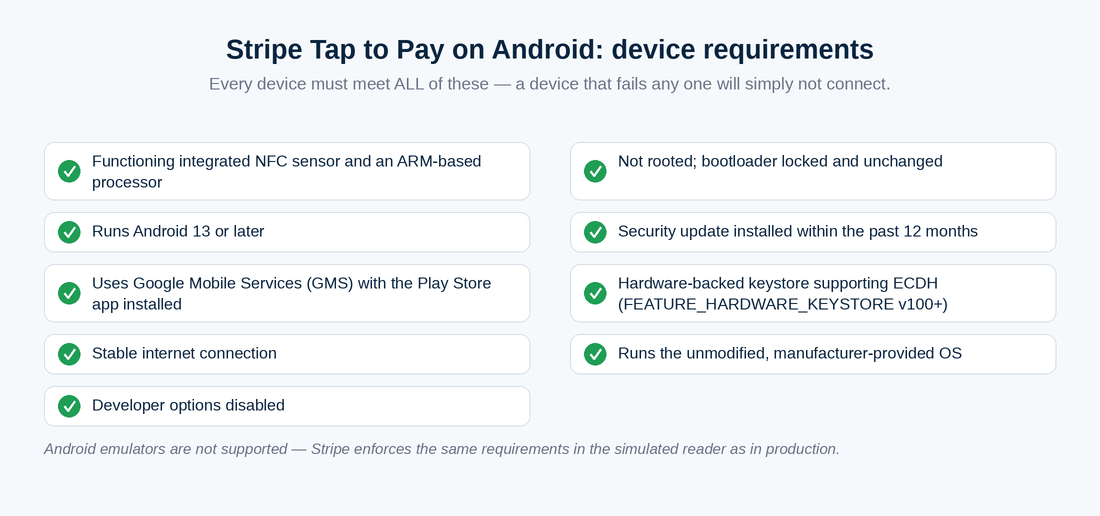
Stripe Tap to Pay on Android works on a wide range of devices — mainstream phones from Google, Samsung, Motorola, Oppo, Xiaomi and others, plus dedicated Android POS hardware — but every device must meet a strict list of security and platform requirements, and a device that fails any one of them simply will not connect.
A compatible device must meet all of the following, per Stripe’s Tap to Pay device requirements:
- Has a functioning, integrated NFC sensor and an ARM-based processor
- Is not rooted, and the device bootloader is locked and unchanged
- Runs Android 13 or later
- Has a security update installed from within the past 12 months
- Uses Google Mobile Services (GMS) and has the Google Play Store app installed
- Has a hardware-backed keystore supporting ECDH (
FEATURE_HARDWARE_KEYSTOREversion 100 or later) - Has a stable internet connection
- Runs the unmodified, manufacturer-provided OS
- Has Developer options disabled
Android emulators are not supported — Stripe enforces the same device requirements in the simulated reader as in production, so you cannot fake your way through testing on an emulator.
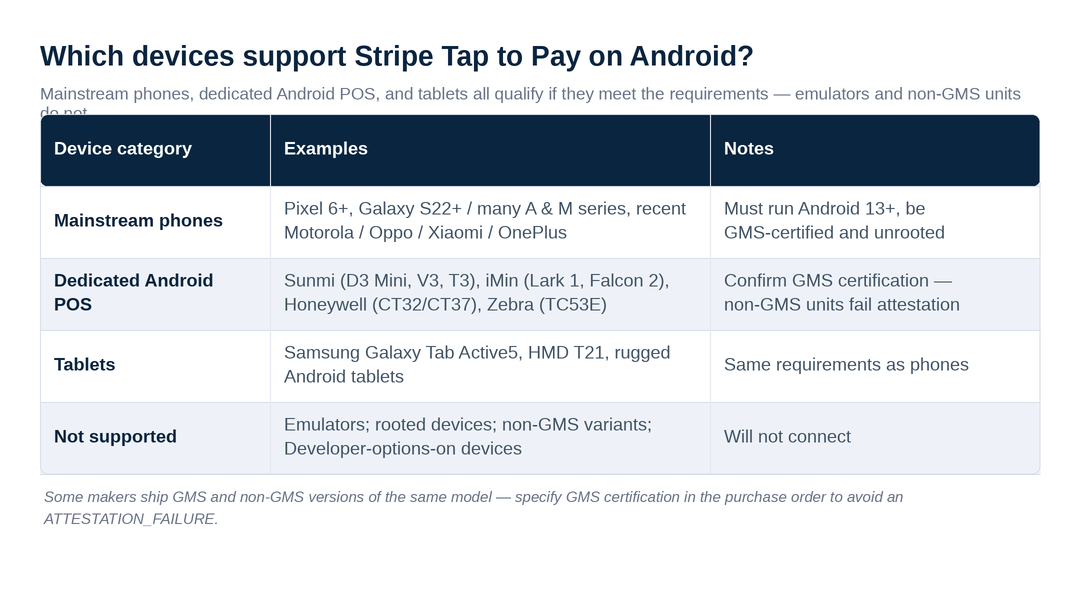
On the phone side, supported models include (but are not limited to) Google Pixel 6 and later, Samsung Galaxy S22/S23/S24/S25 series and many A- and M-series models, and a long list of Motorola, Oppo, Xiaomi/Redmi, Honor, Asus, Infinix, and OnePlus devices. On the dedicated-hardware side, Tap to Pay on Android runs on purpose-built Android POS terminals, kiosks, and handhelds from manufacturers such as Sunmi, iMin, Honeywell, and Zebra. The authoritative, frequently-updated list lives in Stripe’s supported devices documentation — check it against your exact model and OS version before standardizing a fleet.
| Device category | Examples | Notes |
|---|---|---|
| Mainstream phones | Pixel 6+, Galaxy S22+/many A & M series, recent Motorola/Oppo/Xiaomi/OnePlus | Must run Android 13+, be GMS-certified and unrooted |
| Dedicated Android POS | Sunmi (D3 Mini, V3, T3), iMin (Lark 1, Falcon 2), Honeywell (CT32/CT37), Zebra (TC53E) | Confirm GMS certification — non-GMS units fail attestation |
| Tablets | Samsung Galaxy Tab Active5, HMD T21, rugged Android tablets | Same requirements as phones |
| Not supported | Emulators; rooted devices; non-GMS variants; Developer-options-on devices | Will not connect |
A hands-on warning on dedicated hardware: some manufacturers ship both GMS-certified and non-GMS versions of the same model. A non-GMS unit returns an ATTESTATION_FAILURE: Device is not Google Mobile Services (GMS) certified error when you try to connect. When you procure Android POS hardware for Tap to Pay, specify GMS certification in the purchase order — we have seen fleets arrive that physically look identical but fail attestation because someone ordered the wrong variant.
Which countries support Tap to Pay on Android?
Tap to Pay on Android is generally available in the US, UK, Australia, New Zealand, Singapore, Malaysia, and much of Western Europe (Austria, Belgium, Denmark, Finland, France, Germany, Ireland, Italy, the Netherlands, Poland, Sweden, Switzerland), with several more countries — including Canada, Spain, Portugal, Norway, and the Czech Republic — in public preview as of mid-2026.
The detail that catches teams out: the Android and iPhone availability maps are not identical. Canada, for example, is generally available for Tap to Pay on iPhone but is in public preview for Tap to Pay on Android at the time of writing. If you are rolling out across both platforms in the same country, do not assume parity — confirm each platform separately against Stripe’s live availability list, because preview status can carry different terms and can change without much notice.
How do you enable Tap to Pay on Android with Stripe? (Step by step)
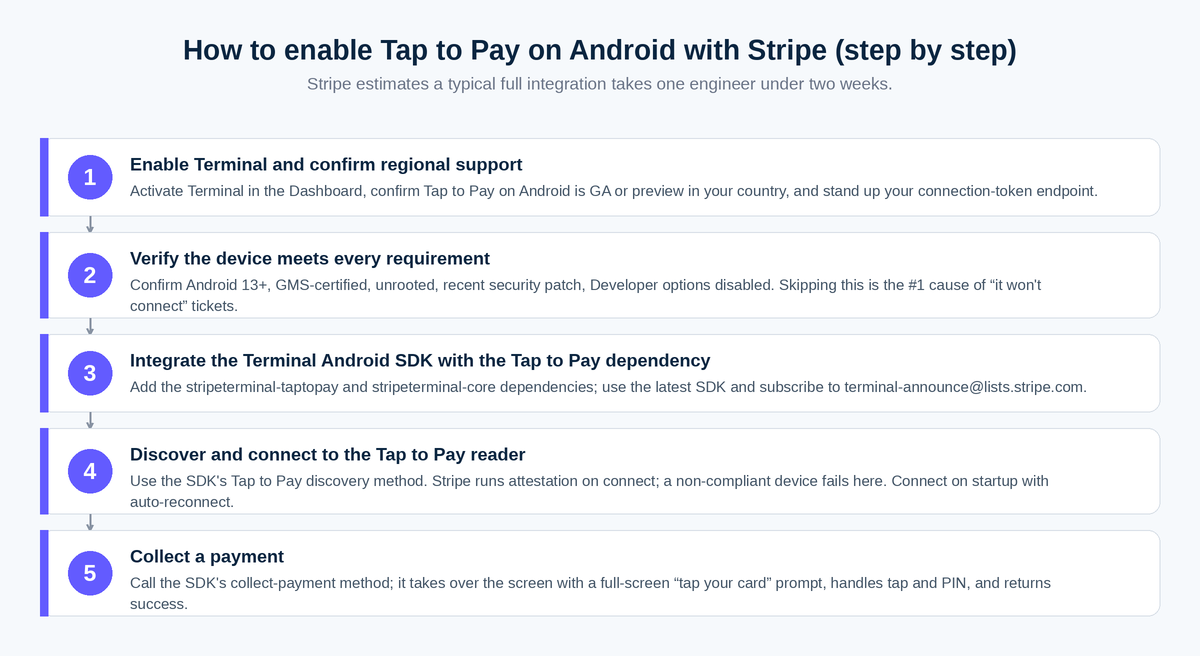
Enabling Tap to Pay on Android is a five-step process: enable Terminal on your Stripe account, confirm the device meets requirements, integrate the Terminal Android SDK with the Tap to Pay dependency, connect to the Tap to Pay reader, and collect a payment. Stripe estimates a typical full integration takes one engineer under two weeks.
- Enable Stripe Terminal and confirm regional support. In the Stripe Dashboard, activate Terminal and confirm Tap to Pay on Android is available (GA or preview) in your country. Stand up the backend endpoint that issues a connection token to your app.
- Verify the device meets every requirement. Before writing code, confirm the target device runs Android 13+, is GMS-certified and unrooted, has a recent security patch, and has Developer options disabled. Skipping this step is the single most common cause of “it won’t connect” tickets.
- Integrate the Terminal Android SDK with the Tap to Pay dependency. Set up the Terminal Android SDK, then replace your existing
stripeterminaldependencies with the Tap to Pay variant. For example:
“kotlin dependencies { implementation("com.stripe:stripeterminal-taptopay:5.4.1") implementation("com.stripe:stripeterminal-core:5.4.1") // ... } “
Use the latest SDK version available to you; subscribe to terminal-announce@lists.stripe.com because device and minimum-SDK requirements change with compliance and security updates.
- Discover and connect to the Tap to Pay reader. Use the SDK’s Tap to Pay discovery method to connect to the on-device reader. On connection, Stripe runs the attestation checks; a non-compliant device fails here. Connect on app startup in the background and enable automatic reconnection so the reader is ready when staff need it.
- Collect a payment. Call the SDK’s collect payment method. The SDK takes over the screen with a full-screen “tap your card” prompt, handles the tap (and PIN, if required), returns a success indication, and hands control back to your app.
No Google or Play Store app-store review is required to accept payments this way — a meaningful contrast with the iPhone flow, covered below.
How do you test Tap to Pay on Android?
You test Tap to Pay on Android on a real, compliant device — emulators are blocked — using Stripe’s simulated reader for logic and physical test cards for end-to-end verification, including PIN.
Because Stripe enforces the same hardware requirements in simulation as in production, your test phone still has to be GMS-certified, unrooted, and on Android 13+. Run the simulated reader to exercise your connection and payment-collection code paths, then move to physical test cards to confirm taps, declines, and cardholder verification behave correctly. To exercise PIN entry in markets that support it, Stripe’s physical test cards use transaction amounts ending in .03. Always run a real tap on the actual target device model before going live — attestation is device-specific, and “works on the Pixel” does not guarantee “works on the rugged handheld procurement just shipped.”
How does PIN entry work on Tap to Pay for Android?
Tap to Pay on Android supports PIN entry on Terminal Android SDK version 4.3.0 and later, collecting the PIN on the device’s own screen when a transaction exceeds the contactless cardholder-verification limit or when the card issuer requests Strong Customer Authentication.
Two security details matter in production. First, the PIN pad deliberately appears in a randomly determined, off-center position on screen — this is expected anti-tampering behavior, not a bug, so do not “fix” it. Second, PIN collection only works in a secure environment: it fails (with a TAP_TO_PAY_INSECURE_ENVIRONMENT error) if Developer options are enabled, accessibility services are running, screen recording is active, a screen overlay window is present, or anything attempts a screenshot. Build your error handling to detect this and guide the user to disable the offending condition and retry, rather than leaving them stuck at a failed payment.
One regional caveat: in markets like Canada and Finland where many cards are offline-PIN-only, the PIN requires physical card insertion, which Tap to Pay cannot do. For those declines, fall back to a Terminal card reader or a Payment Link.
How is Tap to Pay on Android different from Tap to Pay on iPhone?
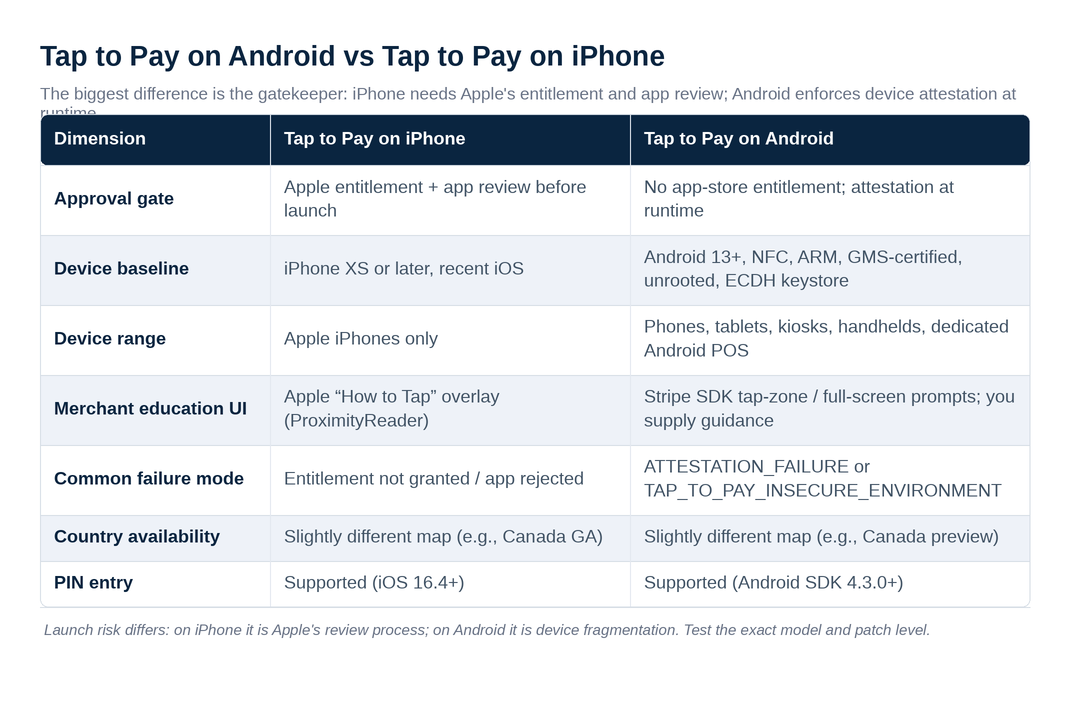
The biggest difference is the gatekeeper: iPhone requires an Apple entitlement and Apple app-review approval before you can ship, while Android requires no app-store entitlement but enforces strict device attestation (GMS certification, unrooted, Android 13+) at connection time. The two also differ on device eligibility, OS baselines, and country availability.
| Dimension | Tap to Pay on iPhone | Tap to Pay on Android |
|---|---|---|
| Approval gate | Apple entitlement + Apple app review required before launch | No app-store entitlement; device attestation enforced at runtime |
| Device baseline | iPhone XS or later, recent iOS version | Android 13+, NFC, ARM, GMS-certified, unrooted, hardware keystore (ECDH) |
| Device range | Apple iPhones only | Phones, tablets, kiosks, handhelds, and dedicated Android POS hardware |
| Merchant education UI | Apple-required “How to Tap” overlay (ProximityReader API) | Stripe SDK provides tap-zone and full-screen prompts; you supply guidance |
| Common failure mode | Entitlement not granted / app rejected | ATTESTATION_FAILURE (non-GMS) or TAP_TO_PAY_INSECURE_ENVIRONMENT (PIN) |
| Country availability | Slightly different map (e.g., Canada is GA on iPhone) | Slightly different map (e.g., Canada is preview on Android) |
| PIN entry | Supported (iOS 16.4+) | Supported (Android SDK 4.3.0+) |
The practical takeaway: on iPhone your launch risk is Apple’s review process; on Android your launch risk is device fragmentation. A single iPhone model behaves predictably, but Android spans thousands of devices and OS builds, and the only reliable way to know a given model works is to test on that exact model and patch level. For platforms deploying across a customer base they do not control, that fragmentation is the thing to plan for.
When should you use Tap to Pay on Android instead of a reader?
Use Tap to Pay on Android when your staff already carry compatible Android devices and you want card acceptance with zero hardware to buy, ship, charge, or pair — and reach for a dedicated reader when you need a customer-facing screen, very high throughput, or chip-and-PIN insertion that Tap to Pay cannot do.
Tap to Pay shines for field-service techs, delivery drivers, mobile sales reps, pop-up and event staff, and any distributed workforce already issued Android phones. It removes the entire hardware supply chain. It is a weaker fit where you need a separate customer display, where transaction volume at a single station is high enough that a docked terminal is faster, or where offline-PIN cards in markets like Canada and Finland force a physical insertion. In a mixed operation, the right answer is often both: Tap to Pay for the mobile majority, a WisePad 3 or S700 for the cases Tap to Pay can’t cover.
Frequently asked questions
How do I enable Tap to Pay on Android with Stripe? Enable Terminal on your Stripe account, confirm your device meets Stripe’s requirements (Android 13+, NFC, GMS-certified, unrooted), integrate the Terminal Android SDK with the stripeterminal-taptopay dependency, connect to the Tap to Pay reader, and collect a payment. No external reader is needed and no Google app-store entitlement is required.
What are the device requirements for Tap to Pay on Android? A compatible device must have NFC and an ARM processor, run Android 13 or later, be unrooted with a locked bootloader, have a security update from the past 12 months, use Google Mobile Services with the Play Store installed, have a hardware keystore supporting ECDH, maintain a stable internet connection, run the unmodified manufacturer OS, and have Developer options disabled. Emulators are not supported.
Does Tap to Pay on Android work on Samsung and Pixel phones? Yes. Supported models include Google Pixel 6 and later and many Samsung Galaxy S- and A-series phones, among many other manufacturers, provided the specific model and OS version meet Stripe’s requirements. Check Stripe’s supported-device list for your exact model.
Is Tap to Pay on Android available in the United States and Canada? Tap to Pay on Android is generally available in the US. Canada is in public preview for Android (note: it is generally available for Tap to Pay on iPhone), so confirm current status and terms before launching in Canada.
Do I need an app-store approval to use Tap to Pay on Android? No. Unlike Tap to Pay on iPhone — which requires an Apple entitlement and app review — Android requires no app-store entitlement. Instead, the device must pass Stripe’s attestation checks (GMS certification, unrooted, Android 13+) at connection time.
Can Tap to Pay on Android collect a PIN? Yes, on Terminal Android SDK 4.3.0 or later, when the amount exceeds the contactless verification limit or the issuer requests Strong Customer Authentication. The PIN pad appears in a randomized, off-center position for security, and PIN collection fails in insecure environments (Developer options on, screen recording, overlays, screenshots).
Is there a no-code way to use Tap to Pay on Android? Yes. The Stripe Dashboard mobile app lets you accept in-person payments via Tap to Pay without building a custom integration — useful for simple use cases. A custom Terminal Android SDK integration is the path when you need Tap to Pay embedded in your own app or platform.
The bottom line
Tap to Pay on Android lets a compatible phone or Android POS device accept contactless payments through Stripe with no external reader — and the work is almost entirely about meeting the device-attestation bar, not writing payment code. Get the device requirements right (Android 13+, GMS-certified, unrooted, Developer options off) and the integration is straightforward; ignore them and you will fight ATTESTATION_FAILURE and TAP_TO_PAY_INSECURE_ENVIRONMENT errors in production.
If you are embedding Tap to Pay on Android into your own app or platform — especially across a device fleet you do not fully control, or alongside iPhone and physical readers — we have done exactly this on the BizSwoop Connect layer and can save you the trial-and-error. Book a free integration consultation and we will pressure-test your device list, SDK plan, and fallback strategy before you ship.
