
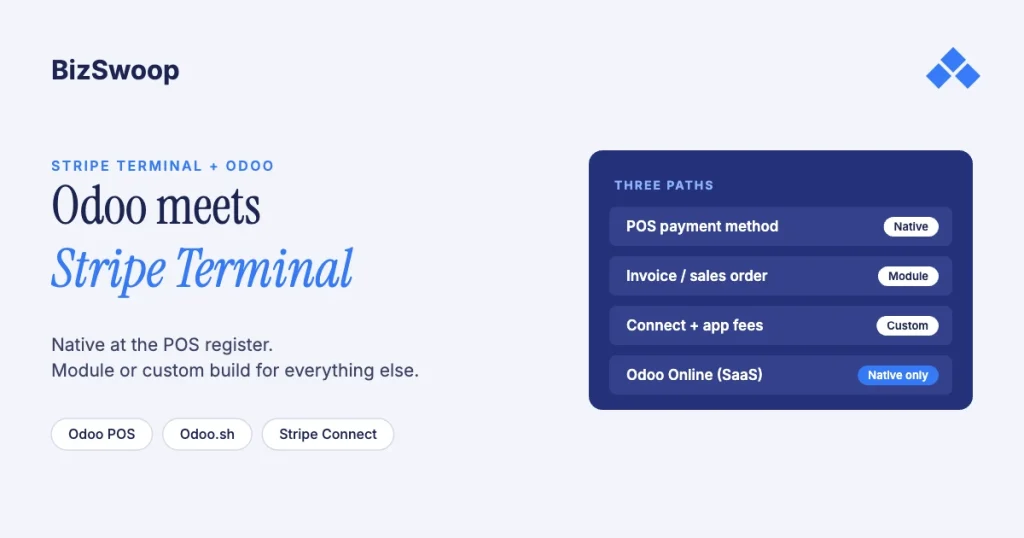
Odoo’s Point of Sale supports Stripe readers natively, so for a register you configure it rather than build it. You enable Stripe, create a POS payment method that integrates with the Stripe terminal, enter the reader’s serial number and pair the reader in your Stripe Dashboard. Anything outside the POS register, such as taking a card against a back-office invoice or running a Connect platform that charges an application fee, needs a third-party module or a custom Odoo module, and those can’t be installed on Odoo Online.
Jovvie, an official Stripe Partner, has built in-person Stripe Terminal payments for WooCommerce merchants since 2016. The Odoo and Stripe details below were re-checked against both vendors’ documentation in November 2026 (Odoo 19 docs). This is the Odoo piece in the ERP pillar; for the cross-ERP view, start with the Stripe Terminal ERP integration patterns guide. The open-source sibling is ERPNext + Stripe Terminal, which faces the same native-module-or-custom decision on a different framework.
Key Takeaways
- The POS register is native. Odoo’s Stripe terminal integration (the
pos_stripemodule) ships in Odoo’s open-source code, so it’s there in Community and Enterprise, and on Odoo Online. - No IoT Box needed. Stripe terminals connect over the network; the POS device and the reader must be on the same network, and Wi-Fi must be secured.
- Back-office card-present payments aren’t native. Taking a card against an invoice or sales order outside the POS needs a module or custom code.
- Hosting decides what you can install. Odoo Online doesn’t allow third-party or custom modules; Odoo.sh and on-premise do.
- Connect platforms are a custom build. The native integration uses one merchant’s own Stripe keys; application fees on connected accounts need your own module.
- Carry the PaymentIntent ID into Odoo. It’s the join key for payout reconciliation, refunds and disputes.
How do I add Stripe Terminal to Odoo?
Pick the path by surface and business model: native POS for a register, a third-party module for back-office invoice payments, a custom module for Connect platforms or flows no module covers.
| Path | Best for | Card-present surface | Hosting | Cost and control |
|---|---|---|---|---|
| Native Odoo POS (Stripe terminal) | Retail and hospitality registers on one Stripe account | POS register | Odoo Online, Odoo.sh, on-premise; Community or Enterprise | Included; least flexible |
| Third-party module (Odoo Apps store) | Card payments on invoices or sales orders without heavy development | POS and/or back office, depending on the module | Odoo.sh or on-premise only | License fee; vendor-defined behavior |
| Custom Odoo module | Platforms, multi-company groups, non-standard flows | Wherever you build it | Odoo.sh or on-premise only | Highest build cost; full control |
If you only need to take a card at a register in one business, the native integration is the answer and you shouldn’t buy or build anything. If you need to charge a card against an invoice in the back office, you need a module or a custom build. If you’re a platform putting many merchants on Terminal and taking a fee, you’re in custom-module territory.
How do you set up Stripe Terminal in Odoo POS?
Activate the Stripe terminal in POS settings, create a payment method that integrates with it, connect your Stripe account, and register the reader to a Stripe Location. Odoo’s Stripe terminal page and the general payment terminals page describe these steps:
- Activate the terminal. In Point of Sale settings, under Payment Terminals, activate Stripe and save.
- Create the payment method. Use a Bank journal, set Integration to Terminal, choose Stripe in “Integrate with”, and enter the reader’s serial number in the Stripe Serial Number field.
- Connect your Stripe account. On Odoo Online, the Stripe payment provider has a Connect Stripe button. On Odoo.sh or on-premise, Odoo’s docs say to copy your publishable and secret keys from the Stripe Dashboard into the provider’s Credentials tab instead, then generate the webhook.
- Pair the reader in Stripe. In the Stripe Dashboard, create a Terminal Location for the store and register the reader by pairing code, serial number or hardware order.
- Take a payment. The cashier picks the Stripe payment method on the payment screen and the customer follows the prompts on the reader. Odoo validates the payment in the POS when it succeeds.
Odoo says its Stripe integration works with a choice of Stripe and third-party terminals, plus Tap to Pay on compatible iPhone and Android devices. In the US, Stripe’s smart readers are the Stripe Reader S700 and S710 ($299 each; S710 cellular is $10 per reader per month), the T600 ($329 plus the $39 Reader Hub) and the BBPOS WisePOS E. Check Stripe’s reader guide against Odoo’s page before you buy.
What the native integration doesn’t cover:
- Back-office card-present payments. Charging a card against an existing invoice or sales order (a parts counter, a B2B pickup, a service visit billed afterwards) is outside the POS flow.
- Connect platform economics. Native setup assumes one merchant’s own Stripe account; there’s no connected-account or application-fee concept.
- Non-standard flows. Authorize-now-capture-later on a sales order, custom metadata mapped to companies, and similar flows are custom-build territory.
Does Stripe Terminal work on Odoo Community and Odoo Online?
Yes for the native POS integration: pos_stripe is in Odoo’s open-source repository, so Community and Enterprise both have it, and it’s available on Odoo Online. Modules and custom code are different, because Odoo Online doesn’t let you install third-party or custom modules.
- Odoo Online (SaaS): native POS terminal only. If you need back-office or platform payments, move to Odoo.sh or self-hosting rather than buying a module that won’t install.
- Odoo.sh: you can deploy custom and third-party modules, which makes it the practical home for a module or custom build without running your own servers.
- On-premise: everything works, but you connect Stripe with manually entered API keys rather than the Connect Stripe button.
So decide hosting before you decide the integration. A business committed to Odoo Online has effectively chosen “native POS only”.
Should you use native, buy a module or build a custom one?
Use native when a POS register on one Stripe account is enough; buy a module when you need back-office invoice payments fast and a module matches your flow; build when you need Connect fees, multi-company mapping or flows no module offers.
| Criterion | Native POS | Third-party module | Custom module |
|---|---|---|---|
| Upfront cost | Included | License | Development |
| Time to deploy | Hours | Days | Weeks |
| Invoice or sales order payments | No | Depends on the module | Yes |
| Stripe Connect and application fees | No | Rarely | Yes |
| Multi-company routing to connected accounts | No | Rarely | Yes |
| Custom PaymentIntent flows | No | Limited | Yes |
| Who maintains it | Odoo | The vendor | You |
| Upgrade risk | Low | Medium: the module must track each Odoo version | Medium: you track Odoo and Stripe |
The hidden cost of buying: modules are published per Odoo version. When you upgrade Odoo, you depend on the vendor shipping a compatible release. For one merchant that’s usually fine. For a platform whose payments run on it, that dependency is a real risk, and it’s one reason multi-merchant operators end up building.
How does a custom Odoo module drive Stripe Terminal?
A custom module uses the standard Stripe Terminal model, with connection tokens, readers registered to Locations and PaymentIntents, to collect a card from an Odoo screen and post the result to the Odoo record.
- Connection token endpoint. A controller in your module mints a connection token with your secret key, server-side. The secret key never reaches the browser. (With a server-driven integration, smart readers don’t need a client SDK at all.)
- Readers mapped to Locations. Register every reader to a Stripe Location and map each Odoo company or shop to a Location, so a sale on a reader lands against the right entity.
- PaymentIntent lifecycle. Create a PaymentIntent for the order or invoice total, collect on the reader, and capture: immediately for a POS-style sale, or later for deposits and authorizations.
- Post back from the webhook. On
payment_intent.succeeded, register the payment on the invoice, sales order or POS order, store the PaymentIntent ID, and make the write idempotent so a retried webhook never posts twice.
Odoo’s developer documentation covers models, views and controllers; Stripe’s Terminal docs cover the payment side. If a module fits your requirements, buy the module. Build when Connect economics or multi-entity mapping are in play.
Running in-person payments for WooCommerce stores too? Jovvie runs on Stripe Terminal readers and Tap to Pay out of the box.
How do Connect platforms charge application fees on Odoo?
Onboard each merchant as a Stripe connected account, tie each Odoo company to its account ID, and set an application fee on every PaymentIntent your module creates. The native integration and typical modules assume a single Stripe account, so this is a custom build.
- Onboard connected accounts. Stripe collects each merchant’s verification and payout details through Connect onboarding; your module stores the account ID per Odoo company.
- Decide where readers live. With direct charges, readers and Locations sit on the connected account. With destination charges, they stay on the platform and the connected account is identified in metadata. Stripe’s Terminal with Connect page covers both.
- Set the fee. Create the PaymentIntent with
application_fee_amount. The merchant gets the sale; your platform earns its fee on every tap. - Reconcile per account. Payouts land per connected account and your fees accrue separately, so tag every Odoo payment with the account and Location IDs.
Who pays Stripe’s processing fee depends on the charge type, so decide that before you price the application fee. See how application fees work on Terminal and the Stripe Connect platform economics guide.
How do you take card-present payments on Odoo invoices without the POS?
Use a module built for back-office card-present payments or a custom module; the native Stripe terminal integration only runs inside the POS. This is the counter-less case: a B2B parts desk, a service business billing after the job, an AR clerk collecting with the customer present.
- Open the invoice or sales order.
- Trigger a card-present collection from a button the module or your code adds.
- Create a PaymentIntent for the balance, collect on the reader and capture.
- Register the payment against the document and store the PaymentIntent ID.
A custom module adds control here, for example authorizing on the sales order and capturing only when the goods ship. Stripe’s docs say a Terminal payment you capture manually must be captured within two days or the authorization expires, so a longer gap needs a fresh payment. If back-office volume is modest and standard, buy; if it’s central to your operation or tied to Connect, build.
For reconciliation, post Terminal payments to a Stripe clearing journal and book each payout from it with Stripe’s fees as a separate line; the payouts and fee extraction guide walks through it.
Frequently asked questions
Does Odoo integrate with Stripe Terminal?
Yes. Odoo Point of Sale has a native Stripe payment terminal integration that drives Stripe readers and supports Tap to Pay on compatible phones. Back-office invoice payments and Connect platforms need a third-party module or a custom module.
Can I use Stripe Terminal with Odoo Community?
Yes. The native integration (pos_stripe) is part of Odoo’s open-source code, so it works on Community as well as Enterprise. Third-party and custom modules also run on Community when it’s self-hosted or on Odoo.sh.
Does Stripe Terminal work with Odoo Online?
The native POS integration does. What Odoo Online doesn’t allow is installing third-party or custom modules, so back-office card-present payments and Connect builds need Odoo.sh or self-hosting.
How do I connect Stripe to Odoo POS?
Activate Stripe under Payment Terminals in POS settings, create a payment method with Integration set to Terminal and Stripe selected, and enter the reader’s serial number. Connect Stripe with the Connect Stripe button on Odoo Online, or paste your API keys on Odoo.sh or on-premise, then register the reader to a Location in the Stripe Dashboard.
Do I need an IoT Box for Stripe readers in Odoo?
No. Odoo’s documentation says Stripe terminals don’t need an IoT connection. The POS device and the reader do need to be on the same network, and a Wi-Fi network must be secured.
Can I take card payments on Odoo invoices without the POS?
Not with the native integration, which only runs in the POS. Use a module built for back-office card-present payments or a custom module that creates the PaymentIntent and registers the payment on the invoice.
Weighing native, module or custom for Odoo?
Bring your Odoo edition, hosting and how you take payments today, and we’ll map them to the path that fits, including telling you when the native POS integration is all you need. If you also sell through WooCommerce, a POS for Stripe like Jovvie covers the in-person side.
Sources: Odoo: Stripe payment terminal · Odoo: Payment terminals · Odoo: Stripe payment provider · Odoo pos_stripe module (GitHub) · Odoo developer documentation · Select a reader · Server-driven integration · Connection tokens API · Terminal with Connect · Stripe Terminal pricing.
