
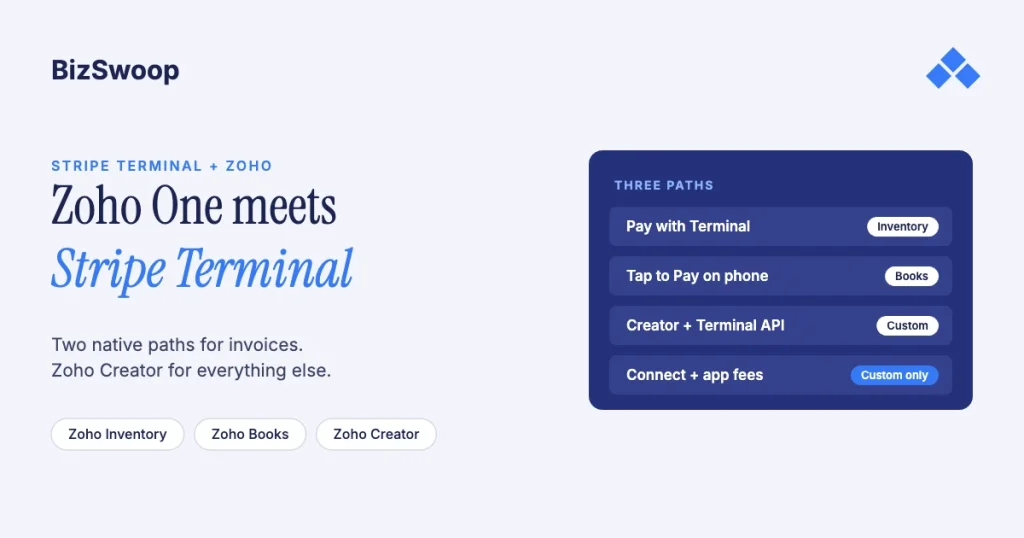
Yes, you can take card-present Stripe payments in Zoho, and two of the three ways are native. Zoho Inventory connects to your Stripe account and records a reader payment against an invoice with “Pay with Terminal”. The Zoho Books mobile app offers Tap to Pay for Stripe users in supported countries, with no reader. For anything those can’t do, such as a custom checkout, payments before an invoice exists, several Zoho apps in one flow, or Stripe Connect fees, you build on Zoho Creator against Stripe Terminal and post the result back to Books or Inventory.
Jovvie, an official Stripe Partner, has built in-person Stripe Terminal payments for WooCommerce merchants since 2016. The Zoho and Stripe details below were re-checked against both vendors’ documentation in November 2026. This is the Zoho piece in the SaaS pillar; start with Stripe Terminal beyond POS: embedding card-present payments into SaaS platforms. The closest sibling is Salesforce + Stripe Terminal for field sales, which solves the same “my system of record isn’t a POS” problem. For a CRM-led version, see HubSpot + Stripe Terminal for in-person deal close.
Key Takeaways
- Zoho Inventory has a native Stripe Terminal integration. Connect Stripe with an authorization flow (no API keys), add each reader by its Stripe ID, and take “Pay with Terminal” payments on invoices.
- Zoho Books’ Stripe path is Tap to Pay. It runs in the Books mobile app on iPhone and Android, matches the payment to the invoice, and is limited to the countries Zoho lists.
- Both native paths are invoice-based. They collect against an existing invoice in one Zoho organization, using your own Stripe account.
- Build on Zoho Creator when you outgrow them. Custom checkout, pre-invoice deposits, cross-app flows, several organizations, or Connect fees need your own backend driving Stripe Terminal.
- Keep secret keys off the client. Connection tokens and PaymentIntents are created on a trusted backend, never in Creator client script.
- Reconcile through a clearing account in Books. Post payments gross, then book each Stripe payout and its fees so the clearing balance returns to zero.
Can I take card-present payments in Zoho?
Yes. Use the native path that matches your system of record, and build on Zoho Creator only for what the native paths can’t do.
- Is the sale invoiced in Zoho Inventory, and do you want a reader at the counter? Use Zoho Inventory’s Stripe Terminal integration.
- Do you invoice in Zoho Books and want to collect on a phone in the field? Use Tap to Pay in the Books mobile app, if Zoho supports it in your country.
- Do you need something neither covers? A custom counter UX, a deposit before the invoice, a flow across CRM, Inventory and Books, several organizations, or a platform reselling Terminal: that’s a Creator build.
How do the three Zoho paths compare?
| Zoho Inventory: Stripe Terminal | Zoho Books: Tap to Pay | Custom: Zoho Creator + Stripe Terminal | |
|---|---|---|---|
| Hardware | Stripe reader, added by its reader ID | Supported iPhone or Android phone | Any Stripe reader or Tap to Pay, depending on your app |
| Where it posts | The Inventory invoice (Paid or Partially Paid) | The Books invoice, matched automatically | Wherever you post it: Books, Inventory, CRM |
| Setup | Connect Stripe in Settings, add terminal devices | Turn on Tap to Pay in the mobile app | You build the backend and Deluge flow |
| Availability | Zoho Inventory with a Stripe account | Countries Zoho lists for Tap to Pay | Wherever Stripe Terminal is available |
| Stripe Connect and application fees | No | No | Yes |
| Non-invoice flows | No | No | Yes |
| Best fit | Inventory-run business with a counter | Field and mobile collection | Zoho One orgs that outgrow the native paths, or resellers |
Most Zoho users should use a native path. It’s less work than anything you could build, and Zoho maintains it. Build custom for a specific requirement the native paths can’t meet, listed below.
How does Zoho Inventory’s Stripe Terminal integration work?
You connect Stripe from Zoho Inventory’s payment gateway settings, add each reader as a terminal device, and choose “Pay with Terminal” when recording a payment on an invoice. Zoho’s Stripe Terminal help page describes the setup:
- Connect Stripe. Under Settings, Payment Gateway, choose Stripe and Connect Now, then sign in and authorize Zoho Inventory. Zoho notes that no API keys are needed.
- Add terminal devices. Under Manage, Terminal Devices, add each reader with its Terminal ID (the reader ID from the Readers page in your Stripe Dashboard) and a name.
- Collect on an invoice. Open the invoice, choose Record Payment, then Pay with Terminal, enter the amount, pick the terminal device and proceed. A full payment marks the invoice Paid; a partial one marks it Partially Paid.
Zoho’s page doesn’t list reader models. Because devices are added by their Stripe reader ID rather than paired over Bluetooth, an internet-connected smart reader is the natural fit: in the US, the Stripe Reader S700 or S710 ($299 each), the T600 ($329 plus the $39 Reader Hub) or the BBPOS WisePOS E. Confirm supported models with Zoho before you buy hardware.
How does Tap to Pay work in Zoho Books?
Turn on Tap to Pay in the Zoho Books mobile app’s settings, open an invoice, tap Tap to Pay, enter the amount and hold the phone out for the customer’s card. Zoho says each payment is recorded and matched to the invoice automatically.
Check availability first. Zoho’s Tap to Pay announcement (April 2026) says the feature launched for the Singapore edition, then Malaysia, and is in “select countries” on iOS and Android, with a country table in the post. Zoho Books’ own help pages document payment terminals for other providers, not Stripe readers, so in Books, Tap to Pay is the Stripe card-present option. Stripe charges an extra 10¢ per Tap to Pay authorization in the US on top of its in-person rate.
When do the native Zoho integrations fall short?
Both native paths collect against an existing invoice, in one Zoho app and one organization, on your own Stripe account. Build custom on Zoho Creator when your requirement crosses any of those lines:
- A checkout the native screen can’t express: line-item changes at the counter, kiosk mode, a custom tipping prompt, a branded flow.
- Payment before the invoice: deposits, payments against a quote or a Creator record, or flows where payment comes first.
- One payment across several Zoho apps: updating the CRM deal, Inventory stock and the Books ledger in one motion. Creator with Deluge is Zoho’s tool for orchestrating across the suite.
- Several organizations: one capture experience that posts to the right legal entity.
- Stripe Connect: a platform reselling Terminal and collecting an application fee needs direct control of the PaymentIntent.
If none of those apply, use the native path.
Selling in person through WooCommerce as well? Jovvie runs on Stripe Terminal readers and Tap to Pay out of the box.
How do you build a custom Zoho Creator + Stripe Terminal flow?
Creator holds the order context and the UI, a backend you control talks to Stripe Terminal, and Deluge posts the result back to Books or Inventory.
- Model the order in Creator. A form or record holds the customer, the amount and a reference to the Books or Inventory document (or a quote or deal, if there’s no invoice yet).
- Run Stripe calls on your backend. Your backend creates PaymentIntents and, if a client SDK is involved, mints connection tokens. Creator calls it with Deluge
invokeurl. With a smart reader, the server-driven integration needs no client SDK: the backend sends the PaymentIntent to the reader through the Stripe API. For Tap to Pay or a Bluetooth reader, you need a native app built on Stripe’s iOS or Android SDK. - Create and collect the PaymentIntent. Use the Creator record’s amount and
card_present, put the Zoho document ID in metadata, and collect on the reader. For a Connect platform, set the connected account andapplication_fee_amounthere. - Post back from the webhook. On
payment_intent.succeeded, mark the Creator record paid and record a payment against the Books or Inventory invoice (Deluge integration tasks or the REST API), deposited to a Stripe clearing account with the PaymentIntent ID stored. Make it idempotent on that ID so a retried webhook never double-posts. - Reconcile the payout. When Stripe pays out, move the net amount from the clearing account to the bank and book Stripe’s fees, so the clearing balance returns to zero for that payout.
Three rules from building variants of this:
- Keep secret keys server-side. Never put a Stripe secret key in Creator client script or a browser.
- Post gross, book fees at payout. Netting fees into each payment understates revenue.
- Pick one ledger. In Zoho One, Books is usually the accounting system of record; Creator is orchestration and UI, not a second ledger.
How do Connect platforms earn application fees on Zoho?
The native Zoho integrations connect one Stripe account and can’t route a platform fee, so a reseller putting sub-merchants on Terminal builds the custom path and sets the Connect parameters on its own PaymentIntents.
- Set the connected account and
application_fee_amounton each PaymentIntent (step 3 above), using direct or destination charges per your model. With direct charges, readers sit on the connected account; with destination charges, they stay on the platform (Terminal with Connect). - Post what you earned. In your own Books organization, record application-fee revenue and reconcile it against the platform’s payouts.
- Optionally post the sub-merchant’s side into their Zoho organization, so gross sales and the platform fee tie out on both ledgers.
See how application fees work on Terminal and the Stripe Connect platform economics guide.
How do you reconcile Stripe payments across Zoho One?
Use one Stripe clearing account in your accounting system of record (usually Zoho Books), whichever path took the payment. Payments can start in Inventory, Books, CRM or Creator, but they land in one Stripe balance and pay out in batches. Post each payment’s gross amount to the clearing account; for each payout, record the bank deposit and Stripe’s fees so the clearing balance returns to zero. Store the PaymentIntent or charge ID on every Zoho record so finance can trace any line back to Stripe. Handle partial payments, refunds and disputes as their own entries rather than editing the originals. The payouts and fee extraction guide covers the payout side.
Frequently asked questions
Can Zoho take in-person card payments with Stripe?
Yes. Zoho Inventory has a native Stripe Terminal integration for reader payments against invoices, and the Zoho Books mobile app offers Tap to Pay for Stripe users in supported countries. For custom flows, multiple organizations or Connect fees, you build on Zoho Creator against Stripe Terminal.
Does Zoho Books support Stripe card readers?
Zoho Books’ Stripe in-person option is Tap to Pay in the mobile app, which uses the phone instead of a reader. The native Stripe reader integration is in Zoho Inventory. For a reader flow posting to Books, you build it on Zoho Creator.
Is Tap to Pay in Zoho Books available in the US?
Check Zoho’s country table before you plan on it. Zoho’s April 2026 announcement says Tap to Pay launched in Singapore, then Malaysia, and is available in select countries.
Do I need Stripe API keys to connect Zoho Inventory?
No. Zoho Inventory connects to Stripe through Stripe’s authorization flow: you sign in to Stripe from Zoho and approve the connection. You then add each reader by its ID from the Stripe Dashboard.
When should I build a custom Zoho Creator integration?
When you need a custom checkout, payment before an invoice exists, one payment across several Zoho apps, several organizations, or Stripe Connect application fees. Otherwise the native Inventory or Books path is less work and Zoho maintains it.
Which Stripe reader should I use with Zoho Inventory?
Zoho doesn’t publish a model list. The setup adds readers by their Stripe reader ID, which suits an internet-connected smart reader such as the S700, S710, T600 or WisePOS E. Confirm with Zoho before you buy.
Standardized on Zoho and not sure which path fits?
Bring your Zoho apps, organizations and how you take payments today, and we’ll tell you whether a native path or a Creator build fits. If you also sell through WooCommerce, a POS for Stripe like Jovvie covers the in-person side.
Sources: Zoho Inventory: Stripe Terminal payments · Zoho Books: Tap to Pay for Stripe users · Zoho Books: Payment terminals · Select a reader · Server-driven integration · Connection tokens API · Terminal with Connect · Stripe Terminal pricing.
